Notifications
Notifications make sure that nothing is missed in Slingshot and keep you on top of things that need your attention.
Types of Notifications
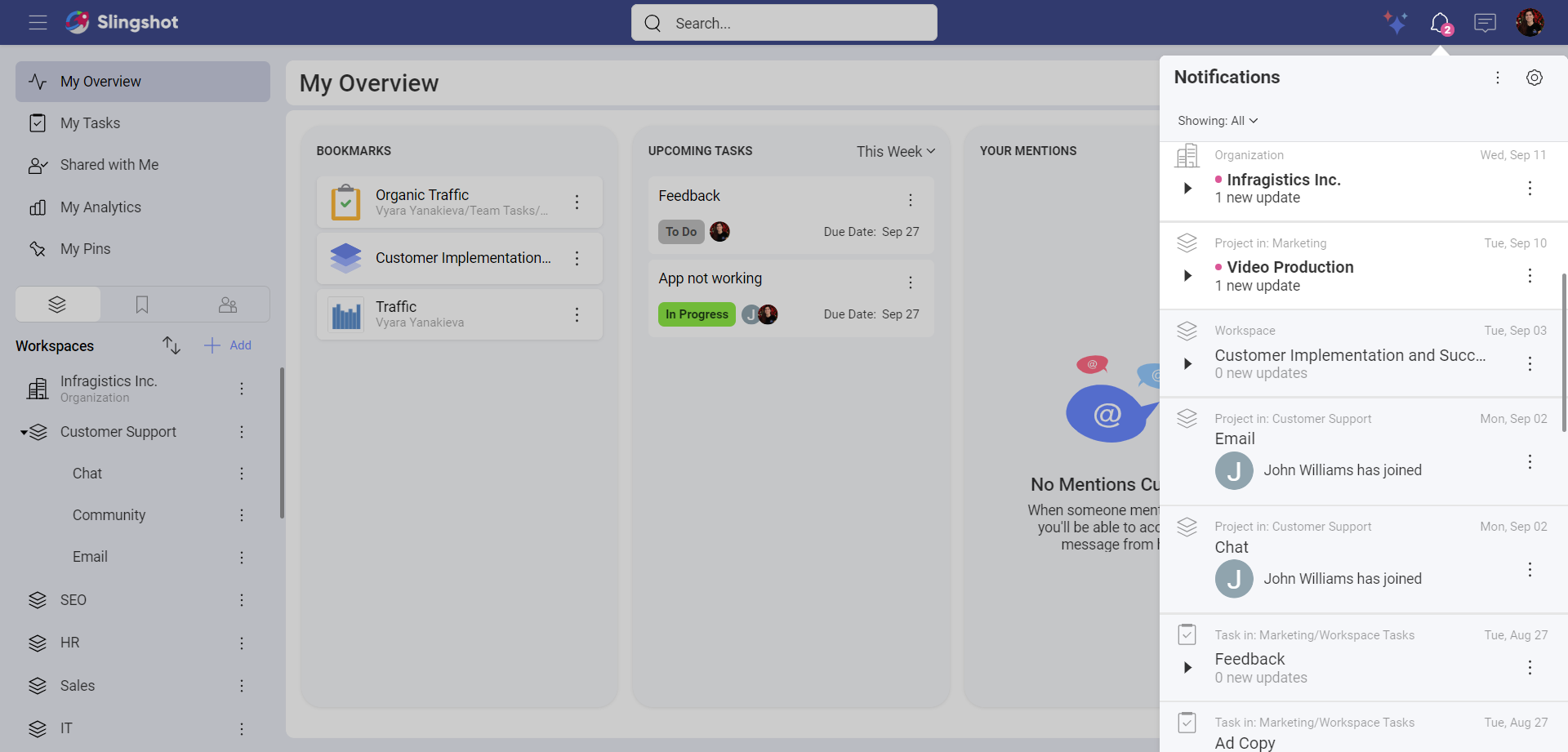
Notifications come in the following three forms:
In-App: Notifications displayed within the app in the Notifications panel, located in the top right (bell icon).
Push: These notifications are clickable pop-up messages displayed when you are not using the app. They will be shown on your mobile device or on your desktop screen (also called "banner" notifications).
Email: Notifications delivered to the e-mail address associated with your account.
Customizing Your Notifications
You can easily change what you are getting notifications for in Slingshot so you only get alerted for what is most important to you. By going into your settings and then the notification tab, you can edit the notification you receive. Alternatively, you can use the overflow menu in the Notifications panel.
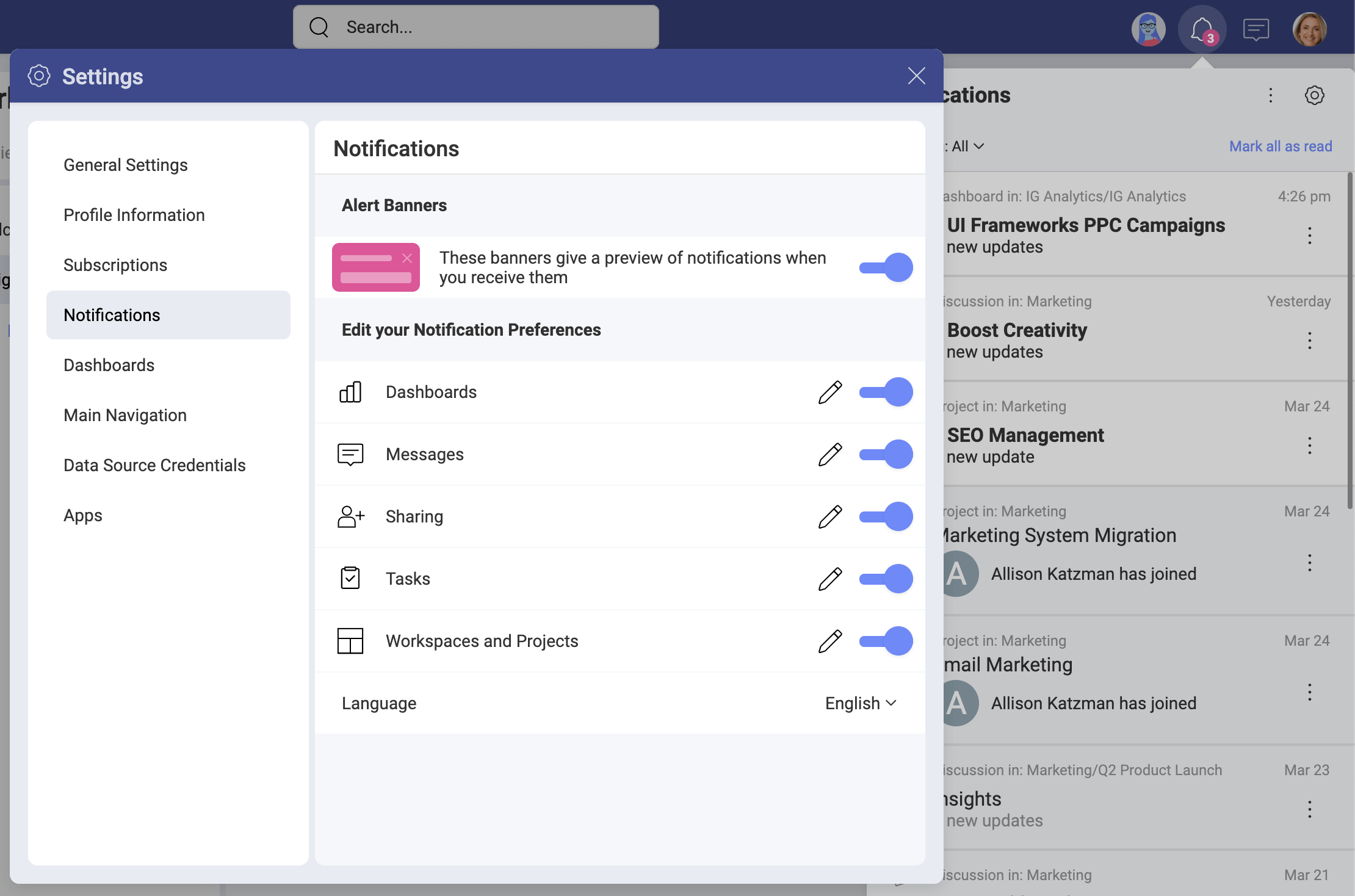
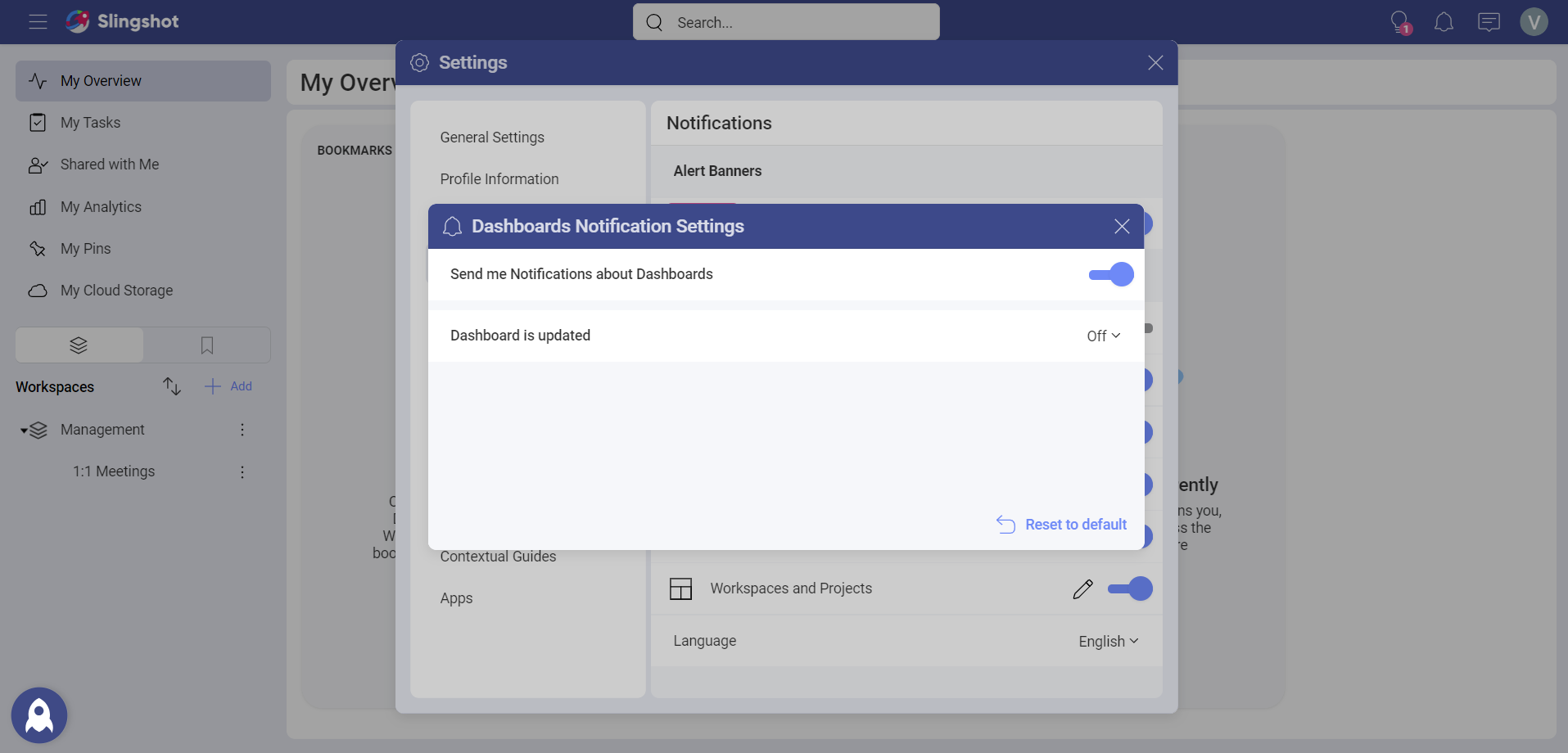
In the Notifications panel, you can select the pencil icon to see the details of each category or toggle on/off an entire category.
Additionally, you can restore the default settings with the Reset to default option at the very bottom.
Using the Notifications Panel
Here you will find updates about workspaces, tasks, messages, mentions, and analytics dashboards. This will keep you up to date on tasks that have been assigned to you, if you were removed from a workspace, or even if someone sent a message in a discussion thread you're following.
[!Note] Only users who are assigned to a task, are mentioned in a task, or have commented in a task, will receive chat activity updates for that task. If a user has created a task, but hasn't participated in the task in any of the ways mentioned above, they won't receive any notifications.
You can access the Notifications panel by clicking on the bell icon in the top right corner.
In the Notifications panel you can choose to see all notifications, only Unread notifications, @Mentions or Flagged notifications.
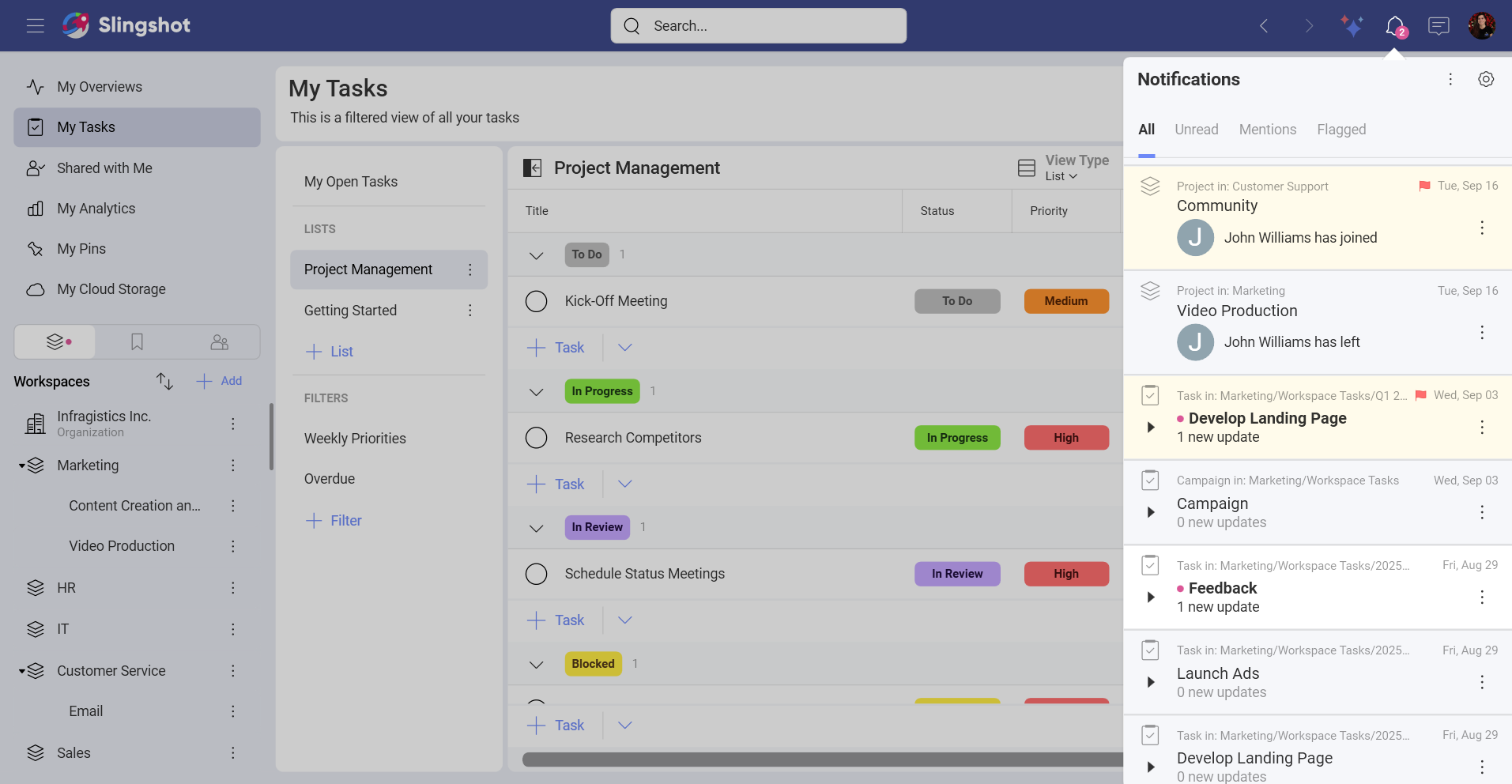
[!Note] You can both flag and mark a notification as unread. The notification will show up under Unread notifications as well as under Flagged notifications.